
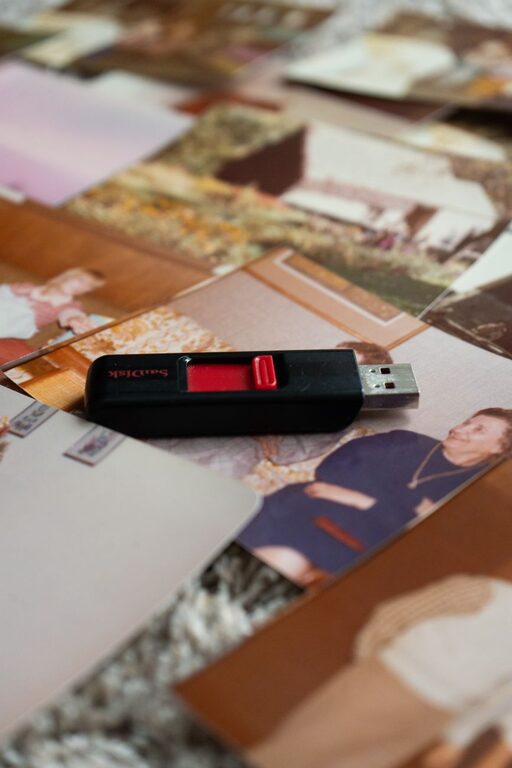
Digital photos make it easy to capture everyday moments, but they can quickly become difficult to manage. Pictures may be scattered across phones, computers, memory cards, cloud services, and social media accounts. Without a simple system, meaningful memories can become hard to find or may be lost over time.
Organizing your digital photos does not require expensive software or advanced technical skills. With a thoughtful process and regular maintenance, you can create a collection that is easy to browse, share, and preserve for future generations.
Start With a Photo Inventory
Before organizing anything, identify where your photos are stored. Make a list of every device, account, and storage location that may contain pictures.
Common sources include:
– Smartphones and tablets
– Digital cameras and memory cards
– Computers and external hard drives
– Cloud storage accounts
– Email attachments
– Messaging apps
– Social media accounts
– Scanned prints and family albums
Do not move or delete files immediately. First, collect an overview of what you have. This helps you avoid overlooking important pictures and gives you a clearer idea of how much storage space you need.
Create a temporary folder called “Photo Collection” on your computer or external drive. Copy photos from each source into separate folders, such as “Phone,” “Camera,” or “Old Computer.” These folders are only for gathering files before you create your final structure.
Remove Duplicates and Unwanted Images
Large photo collections often contain duplicate files, blurry images, screenshots, and accidental pictures. Removing these items makes your collection easier to manage.
Review photos in small batches rather than trying to organize everything in one sitting. For each group, keep the best version of similar pictures. Consider removing:
– Blurry or completely dark images
– Accidental photos of floors or pockets
– Repeated screenshots
– Multiple copies of the same image
– Outdated images that no longer have meaning
– Poor-quality duplicates when a better version exists
Be careful with pictures that look similar. A slightly different expression or background detail may make one photo more meaningful than another. When in doubt, keep the image until you have reviewed it with family members.
You can use duplicate-finding tools to save time, but review their suggestions before deleting anything. Automated tools may identify similar images that are not exact duplicates.
Create a Consistent Folder Structure
A clear folder structure is one of the simplest ways to find photos later. Organize folders by year first, then by event or month.
For example:
– 2022
– 2022-03 Spring Visit
– 2022-07 Family Reunion
– 2022-12 Holiday Gathering
– 2023
– 2023-04 Birthday Celebration
– 2023-08 Beach Trip
Starting folder names with the year and month keeps them in chronological order. Use clear names that explain what happened and who was involved. Avoid vague names such as “New Photos” or “Miscellaneous.”
If your collection is very large, you may want to organize older photos by decade first. For example, use folders such as “1980s,” “1990s,” and “2000s,” followed by year and event folders.
Choose one structure and use it consistently. A simple system that you maintain is more useful than a complicated system that becomes difficult to update.
Rename Important Files
Camera-created filenames such as “IMG_4821” do not provide much information. Renaming every file may take too much time, so focus on meaningful or frequently used pictures.
A useful naming pattern is:
`YYYY-MM-DD Event Description`
For example:
`2024-06-15 Grandma Birthday Dinner`
You can also include a person’s name if it helps with searching:
`2024-06-15 Grandma Birthday Dinner Alex`
Avoid using special characters that may create compatibility problems across devices. Keep names short, descriptive, and easy to read.
If you rename multiple files at once, check a small group first to confirm that the process works as expected.
Add Descriptions and Context
A picture becomes more valuable when future family members understand its story. Whenever possible, record details such as:
– The names of people in the photo
– The date and location
– The event or occasion
– Family relationships
– A memorable detail or short story
You can add this information through file descriptions, photo management software, or a separate family document. For older photos, ask relatives to help identify people and places while they still remember them.
Consider creating a simple “Family Photo Notes” document. Organize it by year or family branch and add information that may not fit in a filename. This record can preserve details that might otherwise disappear.
Use Albums and Search Tools
Folders provide structure, while albums and labels make it easier to gather photos for specific purposes. Create albums for themes such as:
– Family reunions
– School years
– Holidays
– Vacations
– Pets
– First birthdays
– Family recipes and traditions
Most modern photo apps can also search by date, location, or recognized subjects. These features can be helpful, but they should support—not replace—a reliable folder and backup system.
Review privacy settings before sharing albums with others. Choose who can view, download, or add photos, especially when albums include children or private family events.
Follow a Reliable Backup Plan
Organization protects you from confusion, while backups protect you from loss. Hardware can fail, devices can be lost, and online accounts can become inaccessible. Keep more than one copy of important photos.
A practical approach is to maintain:
– One main copy on your computer or primary photo service
– One copy on an external drive
– One additional copy in a separate location or cloud service
The copies should not all be stored in the same place. An external drive kept beside your computer may not help if both are damaged or lost together.
Back up your collection on a regular schedule, such as monthly or quarterly. Set a reminder on your calendar so the task does not get forgotten. After creating a backup, open a few files from it to confirm that they copied correctly.
Replace or update external drives when they become unreliable. Also make sure you know the password and recovery options for any cloud account that stores your photos.
Preserve Photos in More Than One Format
Digital files can become difficult to open if they depend on outdated software or damaged storage. Keep commonly supported image formats, such as JPEG, for everyday use. For original camera files, you may also want to preserve the original format separately.
Do not edit your only copy of an important image. Keep the original file and save edited versions with a clear label, such as “Edited” or “Print Version.” This allows you to return to the original later.
For especially important memories, consider printing selected photos. Printed pictures can be enjoyed without a device and provide another form of preservation. Store prints in a cool, dry place away from direct sunlight and moisture.
Build a Simple Maintenance Routine
Once your collection is organized, avoid letting new photos pile up. Set aside a short amount of time each month to:
- Transfer photos from phones and cameras.
- Delete obvious mistakes and duplicates.
- Add files to the correct year and event folders.
- Add names or notes to important pictures.
- Update your backups.
- Create an album for special moments.
You do not need to organize every photo perfectly. A steady routine is more effective than waiting for a large block of free time.
Share and Enjoy the Collection
The purpose of organizing family photos is not only to store them. It is also to make them easy to enjoy. Create yearly albums, make a slideshow for family gatherings, or print a small photo book for relatives.
Invite family members to contribute names, stories, and dates. Sharing the organizing process can turn a digital cleanup project into a meaningful family activity.
With consistent folders, useful descriptions, dependable backups, and regular maintenance, your digital photo collection can become an accessible family archive. The time you spend organizing today will make it easier for future generations to discover the people, places, and moments that shaped your family story.