
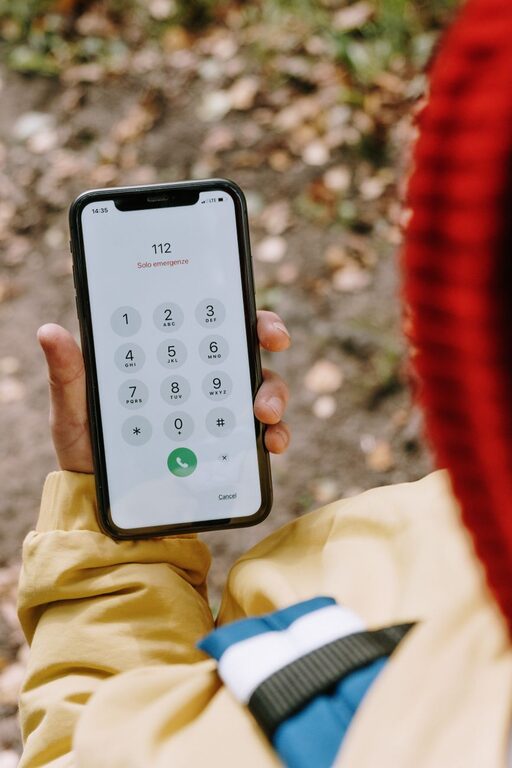
Your smartphone can help you reach trusted people quickly when something unexpected happens. By setting up emergency contacts in advance, you make it easier for someone to contact your family, friends, or other support people when you cannot use your phone normally.
Most iPhones and Android phones include emergency contact tools, but the names and locations of settings may vary by device model and software version. The steps below cover the most common options and offer practical tips for keeping your information current.
Why Emergency Contacts Matter
Emergency contacts are people who should be notified if you need help or cannot respond to your phone. They may include:
– A family member
– A close friend
– A roommate
– A caregiver
– A trusted neighbor
– A workplace contact
Your emergency contacts are usually different from your favorite contacts or speed-dial numbers. The main benefit is that they can often be accessed from your phone’s lock screen or through a safety feature, even when the phone is locked.
Before adding anyone, ask for their permission. Confirm that they are willing to be contacted and explain what kind of information they may receive.
Choose the Right Emergency Contacts
Select people who are likely to answer and who understand how to reach you or provide useful information. Consider adding more than one person so there is a backup if your first contact is unavailable.
When choosing contacts, think about:
– Who lives nearby
– Who knows your basic preferences
– Who can communicate with other family members
– Who is available at different times of day
– Who can help identify you if needed
Add a clear label to each person, such as “Partner,” “Sibling,” or “Neighbor.” This helps others understand the relationship quickly.
Set Up Emergency Contacts on an iPhone
Apple includes emergency information through the Health app’s Medical ID feature. You can choose which details appear on the lock screen and which contacts can be notified through emergency features.
Add contacts through the Health app
- Open the **Health** app.
- Tap your profile picture or initials.
- Select **Medical ID**.
- Tap **Edit**.
- Scroll to the **Emergency Contacts** section.
- Tap **Add Emergency Contact**.
- Select a person from your Contacts list.
- Choose their relationship to you.
- Repeat the process for additional contacts.
- Tap **Done** to save the changes.
You can also turn on Show When Locked. When enabled, someone viewing your locked phone can access your emergency information by tapping Emergency and then Medical ID. Your phone remains locked, while the selected information can still be viewed.
Depending on your iPhone model and settings, Emergency SOS may also contact emergency services and notify your emergency contacts after the feature is used. Review the options under Settings, then Emergency SOS, and learn how your phone behaves before relying on it.
Set Up Emergency Contacts on Android
Android settings can differ between manufacturers, including Samsung, Google, Motorola, and others. Many devices provide emergency contacts through the Personal Safety app, the Safety and emergency section, or the lock screen settings.
Use the Personal Safety or Safety app
- Open the **Personal Safety**, **Safety**, or **Settings** app.
- Look for **Emergency information**, **Emergency contacts**, or **Safety and emergency**.
- Choose the option to add an emergency contact.
- Select a person from your Contacts list.
- Add any additional contacts you want to include.
- Save your changes.
- Look for an option such as **Show when device is locked** and enable it if you want others to access the information.
On some Android phones, emergency information can be opened from the lock screen by tapping Emergency call and then selecting an emergency information option. The exact wording may be different on your device.
You may also find Emergency SOS settings in the same area. These features can vary widely. Some phones can call emergency services, send messages, share your location, or start a recording. Read the on-screen descriptions carefully and configure only the options you understand.
Add Useful Information Without Overloading the Screen
Emergency information should be brief and easy to read. In addition to contact names and phone numbers, some phones allow you to add details such as:
– Your preferred name
– Important accessibility information
– Language preferences
– A short note about how to contact a family member
– Information about a pet at home
– A note indicating that more details are available in your phone
Avoid adding unnecessary personal information. Do not include passwords, account numbers, home security codes, or other private details that could create a security risk if your phone is lost.
If your phone supports a lock screen message, you can add a simple note such as “If found, please call” followed by an alternate contact number. Use a number that is safe to display publicly.
Check Your Phone’s Emergency Calling Features
Emergency calling features are not identical across phones or locations. Some require a mobile signal, while others may work through available networks or satellite connections on supported devices.
Review the following settings:
– How to place an emergency call from the lock screen
– Whether pressing the power button several times activates Emergency SOS
– Which contacts receive alerts
– Whether your location is shared
– Whether an alarm or countdown is used
– How to cancel an accidental alert
– Whether the feature works without mobile data
Do not test by placing a real emergency call. Instead, read the instructions in your phone’s settings or visit the manufacturer’s support website. If your phone includes a practice mode, use that option.
Test and Update Your Setup
After adding emergency contacts, check that the information works as expected. Lock your phone and confirm that the emergency information can be reached from the lock screen without unlocking the device. Do not attempt to call emergency services during this test.
Ask your emergency contacts to confirm that their phone numbers are correct. You can also send them a message explaining that they have been added and telling them how your phone’s emergency features work.
Review your setup every few months and whenever something changes, such as:
– A contact gets a new phone number
– You change your phone
– You move to a new area
– A relationship or living arrangement changes
– You update your phone’s operating system
– You change your privacy preferences
Protect Your Privacy
Displaying emergency information on a locked phone can be helpful, but it also means that some details may be visible to anyone holding the device. Keep your public information limited to what is genuinely useful.
Use a strong screen lock, enable automatic software updates, and avoid storing sensitive information in lock screen notes. If you lose your phone, use your device’s remote lock or erase features as soon as possible.
Final Checklist
Use this quick checklist to confirm that your setup is ready:
– Choose at least two trusted emergency contacts.
– Ask for their permission before adding them.
– Add them through your phone’s official safety settings.
– Enable lock screen access if appropriate.
– Include only brief, useful information.
– Review Emergency SOS settings.
– Check the setup without making a real emergency call.
– Update the contacts whenever information changes.
A few minutes of preparation can make your smartphone more useful when quick communication matters. Set up the feature today, explain it to your chosen contacts, and review it regularly to keep the information accurate.