
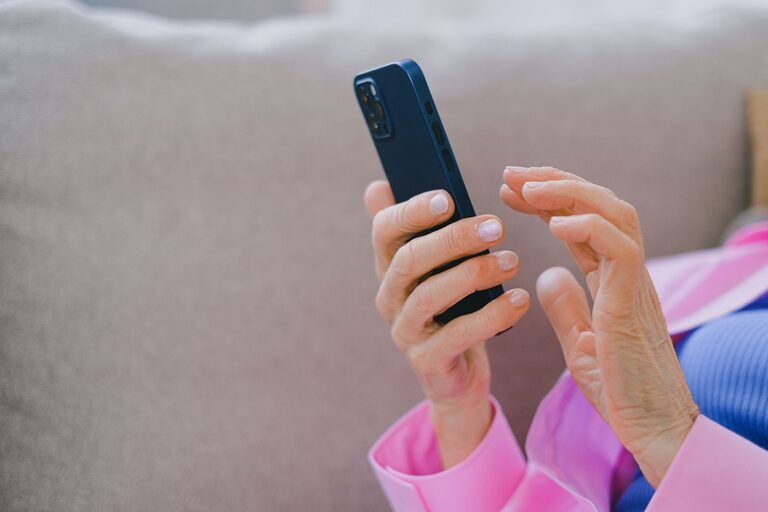
A smartphone can do much more than make calls and send messages. With a few small changes, it can become easier to read, simpler to use, and better suited to your daily routine.
Many useful features are already built into modern phones. The names and locations may differ between iPhone and Android devices, but the general ideas are similar. Explore one setting at a time, and keep the changes that make your phone feel more comfortable.
Make the Screen Easier to Read
A clear display can make reading messages, checking directions, and browsing the internet less tiring.
Increase text size
Look for Text Size, Font Size, or Display Size in your phone’s settings. Move the slider gradually until words are comfortable to read without making the screen feel crowded.
You may also find a Bold Text option. Turning it on can make letters stand out more clearly.
On many phones, you can enlarge text in specific apps as well. For example, your email or web browser may have its own text-size controls.
Improve contrast
Some phones include settings such as Increase Contrast, High Contrast Text, or Reduce Transparency. These options can make buttons, menus, and labels easier to see.
If certain colors are difficult to distinguish, look for Color Filters or Color Correction. These tools adjust the way colors appear on the screen.
Adjust brightness
Set the screen brightness to match the room. A screen that is too dim can be difficult to read, while one that is too bright may feel uncomfortable.
You can turn on Auto Brightness or Adaptive Brightness so your phone adjusts automatically. If the screen changes more than you like, turn this feature off and set the brightness manually.
Make Touch Controls More Comfortable
Small icons and quick taps are not always easy to use. A few settings can make touch controls more forgiving.
Increase touch and hold time
If your phone opens menus when you hold your finger on the screen, look for Touch and Hold Delay or a similar option. Choosing a longer delay can help prevent accidental actions.
Some phones also offer settings that adjust touch sensitivity. These can be helpful if the screen does not respond well to light touches or if you often tap an icon by mistake.
Use larger on-screen keyboards
Many keyboard apps let you change the height or layout of the keyboard. A larger keyboard can make typing names, messages, and web searches easier.
You can also turn on:
– Word suggestions to speed up typing
– Spell check to catch common errors
– Voice typing to speak instead of typing
– Key sounds or vibration to confirm each tap
If keyboard sounds become distracting, keep vibration or visual feedback instead.
Reduce Unwanted Notifications
Frequent alerts can interrupt your day and make important messages harder to notice.
Open Notifications in your settings and review which apps are allowed to send alerts. Turn off notifications for apps that are not important. Shopping, games, and promotional apps are common sources of unnecessary alerts.
For useful apps, choose the alert style that works best for you. You might allow a sound for text messages but use silent banners for social media updates.
Create a quiet schedule
Features such as Do Not Disturb, Focus, or Modes and Routines can silence notifications during meals, reading time, or sleep.
You can usually allow calls and messages from selected contacts while other alerts remain quiet. This creates a calmer phone experience without completely disconnecting you.
Make Calls and Contacts Easier
If you regularly call the same people, add them to your favorites or place them on your home screen.
Add favorite contacts
Open a contact and look for an option such as Add to Favorites. Favorite contacts are easier to find in the Phone app and may also be available when the phone is locked.
For frequent calls, create a contact shortcut on the home screen. A single tap can then start a call or open a message thread.
Improve call clarity
Check your phone’s Audio or Sound settings for features such as Hearing Aid Compatibility, Noise Reduction, or Call Volume. Availability varies by model.
If you use wireless earbuds or a hearing device, confirm that Bluetooth is turned on and that the device connects automatically when needed.
Use Voice Features for Hands-Free Help
Voice tools can be useful when your hands are busy or when typing feels inconvenient.
A built-in voice assistant can help you:
– Set alarms and timers
– Create reminders
– Call a contact
– Send a short message
– Check the weather
– Start navigation
– Add an item to a shopping list
You can also use voice typing in messages, notes, and email. Speak clearly and review the text before sending it, especially when names or addresses are involved.
If you prefer not to use a voice assistant, you can still use the microphone button on the keyboard for dictation.
Simplify the Home Screen
A crowded home screen can make it hard to find the apps you use most.
Move your most useful apps to the first screen, such as:
– Phone
– Messages
– Camera
– Maps
– Calendar
– Weather
You can group less-used apps into folders or remove them from the home screen without deleting them. On many phones, swiping up or opening the app library still gives you access to every installed app.
Use a simple, high-contrast wallpaper so icons and labels remain easy to see.
Set Up Helpful Reminders
Your phone can help you remember everyday tasks without requiring a separate device.
Use the Calendar for appointments, birthdays, and events. Add an alert in advance, and choose a second reminder if the event is especially important.
Use Reminders or a task app for items such as:
– Returning a phone call
– Bringing a document
– Taking out the recycling
– Picking up an order
– Checking a household task
For repeating activities, set the reminder to repeat daily, weekly, or monthly. This prevents you from having to enter the same task again and again.
Make Maps and Travel Easier
Before using navigation, increase the text size and check that voice directions are enabled. A spoken turn-by-turn guide can be easier to follow than constantly looking at the screen.
Save common destinations, such as home, work, a family member’s house, or a favorite store. Check the route before leaving, and keep the phone safely mounted if you need to view directions while driving.
For walking trips, use a comfortable volume and review the route before starting.
Review Safety and Privacy Settings
Take a few minutes to review which apps can access your location, microphone, camera, and contacts.
Choose While Using the App for location access when that option is available. Turn off permissions that an app does not need. You can change these choices later.
Set a screen lock using a PIN, password, fingerprint, or face recognition. A screen lock helps protect personal information if the phone is misplaced.
Also check that your phone installs system updates automatically or reminds you when updates are ready. Updates can improve performance, add features, and correct problems.
Make One Change at a Time
You do not need to adjust every setting at once. Start with the change that would help most, such as increasing text size, reducing notifications, or adding favorite contacts.
After using a new setting for a few days, decide whether it feels helpful. If not, you can easily change it back. With a small amount of personal customization, your smartphone can become a more comfortable and dependable part of your everyday routine.